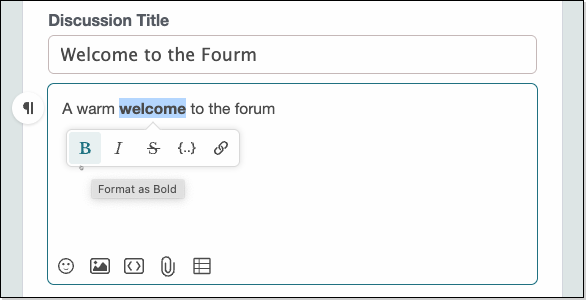
Rich Editor is the editor you’ll use to write and format text when creating forum posts.
It’s designed to be intuitive, so you can usually work out how to use its features quickly, but in his thread we'll highlight some of those features and offers guidance to help you make the most of them.
(Toggle Blocks)
Selecting text in the editor displays the following formatting options: bold, italic, strikethrough, inline code, and hyperlink.
In addition, you can use the following keyboard shortcuts:
ctrl+b
⌘+b
ctrl+i
⌘+i
ctrl+k
⌘+k
✔️ TIP: You can also quickly create a link by copying a URL (e.g., from your browser), selecting text in the editor, and pressing ctrl+v or ⌘+V to replace the highlighted text with the link.
ctrl+v
⌘+V
Click into a paragraph to display a paragraph-level formatting menu to the left, as shown below.
The options in each category are as follows:
While spoiler text is always visible when editing the post, it will automatically be collapsed when the post is published, until a user clicks to view it. This ensures that each user can decide whether or not to view the content.
—
Here are a few tips when working with lists:
Indenting/outdenting is possible in two ways:
📝 NOTE: To outdent via the enter/return key, the paragraph must be blank.
You can include images in bulleted and numbered lists.
For numbered lists, specifically, Rich Editor allows you to insert images and continue the numbering flow. Let's look at an example:
The Link menu, which displays when pasting a URL into the editor or selecting one, allows you to display your links in four formats (listed left to right):
https://www.bbc.co.uk/
BBC
📝 NOTE: If the pasted link supports Smart Embedding, the Card view will be used by default. If Smart Embedding is not supported, a Rich Link to the page is used by default.
To edit a link button, first select it in the editor and then click the pencil (edit) icon.
A link button can be customized as follows:
Click Save at the bottom right to finalise any changes made.
Rich Editor supports tables in two ways. You can:
✔️ TIP: You can resize columns by dragging their borders.
✔️ TIP: You can add images to a table in two ways: Click the Insert Image icon in the editor or paste a copied image from another source, such as Windows Explorer.
📝 NOTE: When pasting a table containing images, those images will not be included. You must manually insert images into the table after it's pasted.
The code block format option formats your text as code and includes syntax highlighting for some of the more common coding languages. When you input code, the coding language is automatically detected and the syntax is highlighted accordingly. Rich Editor currently supports:
code
Rich Editor supports the following markdown-based macros:
At the bottom left of Rich Editor is the Emoji Picker, which you can use to add thousands of emojis to a post. The emojis are grouped into the following eight categories:
There are two ways to insert images into a post:
Select an image to enable the following management options (discussed from left to right):
While the Small, Medium, and Large image options control the size of images added to their own paragraphs, the Inline option enables you to add one or more images directly within a paragraph.
✔️ TIP: Inline images inherit their size based on the format type: paragraph or heading 2—5. As you can see below, the inline image in the paragraph is smaller than the same image in the H2.
Rich Editor allows you to hyperlink your images, making them function as clickable links that navigate your users to internal or external URLs. Creating links in this way offers a more visually engaging user experience when navigating your community.
There are two ways to upload files to a post:
Once the post is published, users will be able to download any attached files, as you see below.
Mentions are a quick and easy way to notify other users about certain comments and posts that may interest them.
Depending on the mentioned user’s notification settings, they’ll either:
To mention someone, simply type “@” and then start typing the user’s name. As you type, a list of suggested users will display; continue typing to narrow down this list.
Tip Email